
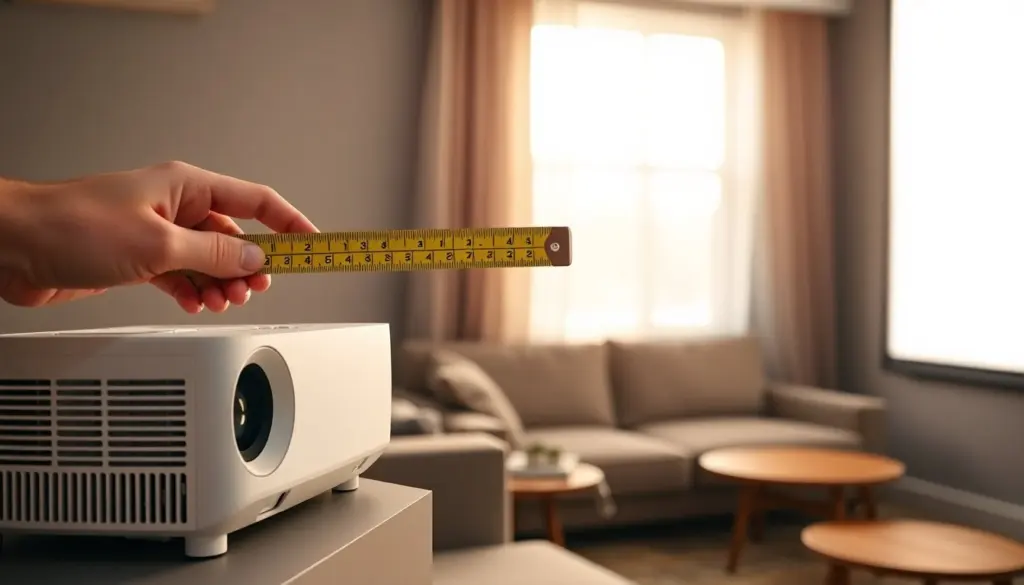
If someone needs the correct throw distance and screen size for a projector, a projector distance calculator gives an immediate answer based on lens specs and screen dimensions. It saves time and prevents costly placement errors. Below are quick facts anyone should know before using a calculator and then a clear, step‑by‑step walkthrough plus practical tips for real rooms.
Key Takeaways
- A projector distance calculator uses the throw ratio and screen size to accurately determine the ideal projector placement distance.
- Understanding the throw ratio, lens type, and screen dimensions is crucial for using a projector distance calculator effectively.
- Always input accurate projector specs and select measurement units carefully to get precise throw distance recommendations.
- Use lens shift instead of keystone correction when possible to maintain image quality during projector setup.
- Adjust calculated distances manually if room constraints prevent ideal placement, prioritizing minimal keystone correction for sharpness.
- Test the projector image in the actual room and lighting conditions to confirm focus, zoom, and overall image quality after placement.
How Projector Throw, Lens, And Screen Size Work Together
A projector’s image size at a given position depends on three linked factors: the throw ratio, the projector’s lens, and the screen size. The throw ratio is a simple number, projector manufacturers usually list it as something like 1.5:1, meaning the projector must sit 1.5 feet from the screen for every 1 foot of image width. Lenses change that ratio: short‑throw lenses have ratios under 1.0, letting a projector produce large images from close distances: long‑throw lenses need much more space.
Throw ratio × image width = throw distance (center of lens to screen). That equation is the backbone of any projector distance calculator. Calculators often accept either image width or diagonal: if diagonal is entered they convert to width using the screen’s aspect ratio (for example, a 16:9 screen with a 100″ diagonal has a width of about 87.2″).
Other real‑world factors affect placement too. Keystone correction and digital zoom can tweak image size but at the cost of image quality: lens shift moves the image without tilting the projector and is preferable where available. Room constraints, ceiling height, furniture, and audience sightlines, also influence where the projector can sit. A calculator gives the technical distance, and then someone must check whether that position fits the room physically and visually.
Step‑By‑Step Using A Projector Distance Calculator (Inputs, Outputs, And Examples)
Using a projector distance calculator typically follows a few clear steps. The numbered steps below are the most common flow found in reliable tools: they assume the user has the projector’s throw ratio or lens model.
- Gather the projector specs: throw ratio (e.g., 1.5:1) or lens model and native aspect ratio. If only a lens model is known, the calculator may look up the corresponding throw ratio. This is the essential input.
- Choose the desired screen size: enter either the diagonal (in inches) or the width and aspect ratio. The calculator converts diagonal to width automatically for common ratios like 16:9 and 4:3.
- Pick the measurement units (feet/meters) and whether the distance should use lens center to screen or projector rear to screen. Many calculators show both. The user should prefer lens‑center distances for accuracy.
- Review the outputs: the tool gives a recommended throw distance range (minimum and maximum) and often shows the zoom setting required. It may also display lens shift values if the projector supports them.
- Test with examples: for a projector with a 1.5:1 throw ratio and a 100″ diagonal 16:9 screen (about 87.2″ wide), the throw distance equals 1.5 × 87.2″ = 130.8″ (about 10.9 feet). The calculator will also say what happens if the projector is closer, whether digital zoom or lens shift can compensate.
- Adjust for room specifics: input ceiling height or mounting offset if the calculator allows, and confirm the keystone limits. If the projector has an optical zoom, note the zoom ring setting that matches the given distance.
Common calculator outputs to watch for include recommended mounting height, minimum throw for full‑screen coverage, and warnings when the required distance falls outside the projector’s optical zoom range. Using the calculator before mounting avoids returns and re‑installation. Bold key checks, throw ratio and image width, help prevent simple mistakes.
Practical Tips, Common Mistakes, And When To Adjust Distance Manually
Practical setup tips help translate calculated distances into a viewing reality. First, always measure the room and mark both the projector mount and the screen edges. If a projector has lens shift, prefer shifting to keystone correction: it preserves image fidelity. When mounting on the ceiling, verify the projector’s filter/access needs and leave enough clearance for ventilation.
Frequent mistakes include misreading the throw ratio (confusing width with diagonal), ignoring the projector’s zoom limits, and neglecting furniture and walkways that block the light path. People also forget that the calculator’s distance is lens‑center to screen, measuring from the projector’s rear will produce errors. Another issue: assuming keystone can replace correct placement: while keystone fixes distortion, it reduces sharpness.
When to override the calculator: if room layout forces a non‑ideal position (e.g., projector must be recessed or mounted in a soffit), someone should manually test slightly closer or farther distances and accept a small image size change rather than introduce heavy keystone. For very bright rooms or very large audiences, increasing throw distance to use a larger screen can improve legibility, provided the projector’s lumen rating supports it.
Final checks: test the image at the calculated distance using actual content, not test patterns alone, and confirm focus across the screen. If adjustments are needed, change the projector position in small increments and recheck zoom and focus. A calculator is a precise starting point: practical validation ensures the final setup looks right in the real space.
Projector Distance Calculator FAQs
What is a projector distance calculator and how does it work?
A projector distance calculator determines the correct throw distance and screen size by using the projector’s throw ratio, lens specifications, and screen dimensions to ensure proper image placement without errors.
How do I use a projector distance calculator with my projector’s throw ratio?
Input your projector’s throw ratio (e.g., 1.5:1) and your desired screen size into the calculator. It then multiplies the throw ratio by the screen width to give the ideal distance from the lens to the screen.
Why is lens shift preferred over keystone correction in projector placement?
Lens shift moves the image without tilting the projector, preserving image quality, while keystone correction distorts the image and reduces sharpness.
Can I rely solely on the projector distance calculator for final installation placement?
No, after using the calculator for technical distance, you should verify physical space, ceiling height, furniture placement, and sightlines, and test the image with actual content to ensure optimal setup.
What should I do if my room layout prevents ideal projector placement?
Manually test slightly closer or farther distances than the calculator suggests, accept minor image size changes, and avoid heavy use of keystone correction to maintain image quality.
How does the throw ratio affect projector placement in different room sizes?
The throw ratio determines how far the projector must be from the screen for a given image width; short-throw lenses need less distance, ideal for smaller rooms, while long-throw lenses require more space.

Leave a Reply