
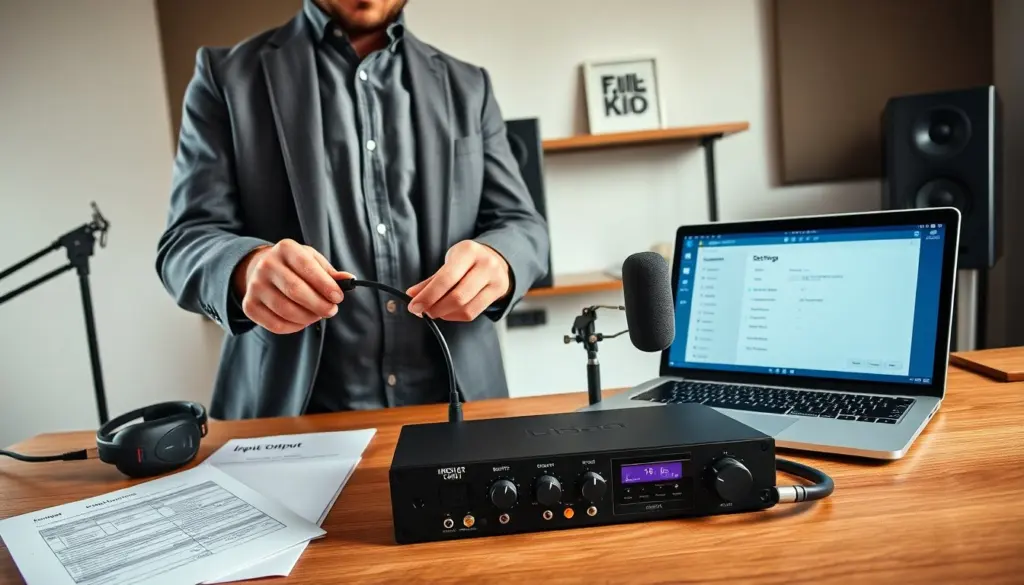
How to use an audio interface is a core question for new home recordists. This guide gives clear steps and practical tips. It shows when to add an interface, how to pick one, and how to connect gear. It explains settings that affect sound and latency. The reader will get fast, usable advice to start recording with less noise and fewer errors. Read through the sections below for decision-making criteria, a careful setup checklist, and hands-on troubleshooting so you can get from unboxing to recording quickly and confidently.
Key Takeaways
- An audio interface converts analog signals to digital audio, enabling better sound quality and low-latency monitoring for home recording.
- Choose an audio interface by matching input needs, preamp quality, connection type, and compatibility with your computer and DAW.
- Set up your audio interface by connecting it properly, installing drivers, and selecting it as your input and output device in settings.
- Use direct monitoring to achieve near-zero latency and adjust buffer sizes in your DAW to balance latency with CPU performance.
- Troubleshoot common issues by checking cables, updating drivers, adjusting gain levels, and rebooting devices to maintain optimal audio interface function.
What An Audio Interface Does And When You Need One
An audio interface converts analog signals to digital audio. It gives microphones and instruments a path into a computer. It also converts digital audio back to analog for speakers and headphones. A person needs an interface when they want better preamps, lower noise, or more reliable input levels than a computer’s built-in soundcard. A person also needs one to use XLR microphones, balanced inputs, and low-latency monitoring.
Beyond basic conversion, modern interfaces provide mic preamps with gain control and sometimes high-pass filters, instrument-level inputs for guitars and basses, and line inputs for synths and external processors. Many have dedicated headphone outputs with level control and separate monitor outputs so you can route different mixes. They can also supply +48V phantom power required by condenser microphones. If you plan to record multiple sources simultaneously (for example, drums or a band), or want cleaner signal paths and lower noise, an interface becomes essential.
When to add one: if you hear hiss or poor fidelity from the computer’s headphone jack, need to use professional microphones, want stable clocking for multitrack sessions, or require low-latency monitoring for performance. If you only need to capture occasional voice notes, the internal sound device may be adequate; for any serious recording or streaming work, an audio interface will improve results and workflow.
How To Choose The Right Audio Interface For Your Setup
A buyer should match the interface to the session size and budget. They should count the inputs needed for mics and instruments. They should check preamp quality, sample rate, and bit depth. They should choose USB, Thunderbolt, or USB-C based on the computer ports. They should consider built-in DSP if they want zero-latency effects. They should read reviews for noise floor and driver stability. They should confirm the interface supports the chosen DAW and operating system.
Practical selection checklist: – Inputs/outputs: list how many mic/line/instrument sources you’ll record at once and pick an interface with at least that many physical inputs. – Connectivity: match the interface’s connection to your computer for the best throughput and lowest latency; Thunderbolt and USB-C often give better performance than older USB 2.0. – Preamps and converters: look for clean gain with minimal noise and headroom; advertising terms like “high headroom” or “low noise floor” are useful flags but verify with user feedback. – Extras: MIDI I/O, ADAT/SPDIF expandability, talkback mic, and built-in DSP for effects are conveniences that can be worth paying for depending on workflow. – Portability vs. studio: bus-powered desktop units are great for mobile setups; rack or larger desktop units with their own power supplies can be more stable for fixed studios.
Also consider software bundles and driver support. Stable drivers are crucial — even a well-built interface becomes frustrating with unreliable drivers. Check the manufacturer’s support policy for firmware updates and compatibility statements, and ensure the interface’s sample rates and bit depths are compatible with your DAW session needs.
Setting Up Your Audio Interface Step-By-Step
A person unboxes the interface and connects the power or bus power. They connect the interface to the computer using the supplied cable. They install drivers or firmware when the manufacturer provides them. They open the computer sound settings and set the interface as the input and output device. They restart the DAW and verify the interface appears in the audio device list. They save a simple project to confirm read and write access.
Step-by-step expanded: 1. Unbox and place: put the interface on a stable surface near your computer and monitors. If it’s bus-powered, ensure the computer will supply enough power; if it’s self-powered, connect the included power adapter. 2. Physical connections: connect microphones via XLR, instruments to Hi-Z inputs, and monitors to balanced outputs (TRS or XLR). Use quality cables to avoid noise. 3. Firmware and drivers: install the latest drivers for your OS (if required). Some class-compliant interfaces need no drivers on modern OS versions, but check the manufacturer notes. 4. System settings: on Windows or macOS, select the interface in Sound or Audio MIDI settings. In your DAW, set the audio device, sample rate (44.1kHz or 48kHz for most projects), and buffer size. 5. Gain staging: set preamp gain so average signal peaks are well below clipping. Use the interface’s meter or DAW meters to confirm. 6. Test recording: create a test session, record a short take, and listen back through monitors and headphones to confirm clean capture and monitoring. 7. Save presets: if your interface includes a control app for routing and monitoring, save a default routing preset so you can recall your preferred setup quickly.
Monitoring, Latency, And Creating A Headphone Mix
A person chooses direct monitoring for near-zero latency when tracking. They enable software monitoring only when latency stays acceptable. They adjust buffer size to trade latency for CPU stability. They use the interface’s headphone output or an external headphone amp for better volume. They create a headphone mix by sending independent levels to outputs or by using the interface’s control app. They keep the performer’s mix warmer or louder as needed for comfort.
Details and best practices: – Direct monitoring vs. software monitoring: direct monitoring routes the input to the outputs before the signal hits the DAW, avoiding round-trip latency. Use it for critical tracking situations. Use software monitoring when you need to hear plugin processing, but reduce latency by lowering buffer size during recording if your CPU allows. – Buffer size settings: start with a small buffer (64–128 samples) when tracking to keep latency low; increase (256–1024+) for mixing to free CPU headroom. If you hear pops or dropouts at low buffer sizes, raise the buffer until stable. – Building a headphone mix: use the interface’s mix knob or routing software to blend live input with playback; include click tracks or backing tracks at appropriate levels; reduce bleed by lowering room monitor volume. – Level and headphone considerations: different headphones have different impedance — use a dedicated headphone amp if the interface’s headphone output is weak. Provide performers with a slightly “forward” mix (more vocal, a touch of reverb) to help performance confidence.
Common Problems And Quick Troubleshooting Tips
A person checks cables when they hear no sound. They confirm the interface is the selected device in the operating system and DAW. They update drivers when they see dropouts or clicks. They increase buffer size to fix stuttering during playback. They lower preamp gain to stop clipping. They turn off phantom power before unplugging microphones to avoid pops. They reboot the computer and the interface if devices fail to sync.
Troubleshooting checklist and quick fixes: – No sound: verify power, cables, and that the interface is selected as the OS and DAW device. Check monitor output routing and mute states. – Latency or clicks: increase buffer size, update drivers, close CPU-heavy apps, and check for USB bandwidth conflicts (avoid using hubs for high-throughput interfaces). – Distortion/clipping: reduce preamp gain, check that pads are engaged if available, and ensure instruments are using the correct input (line vs. instrument). – Phantom power issues: only enable +48V for condenser mics and ensure it’s off before disconnecting to prevent pops and potential damage. – Sync/dropouts in multi-device setups: use the interface’s internal clock or configure one device as the master clock to avoid sample rate mismatches. – Ground loop/hum: try different power outlets, use balanced cables, or lift the ground on DI boxes; moving cables away from interference sources can help. – Firmware/driver problems: check the manufacturer’s support pages for known issues and recommended driver versions; keep a copy of a stable driver if updates introduce problems.
With these expanded steps and checks, learning how to use an audio interface becomes a practical, manageable process. Start simple: confirm connections and basic settings, then iterate on gain staging, monitoring preferences, and routing as you grow more comfortable. That approach reduces frustration and gets you recording better-sounding takes faster.
Leave a Reply