
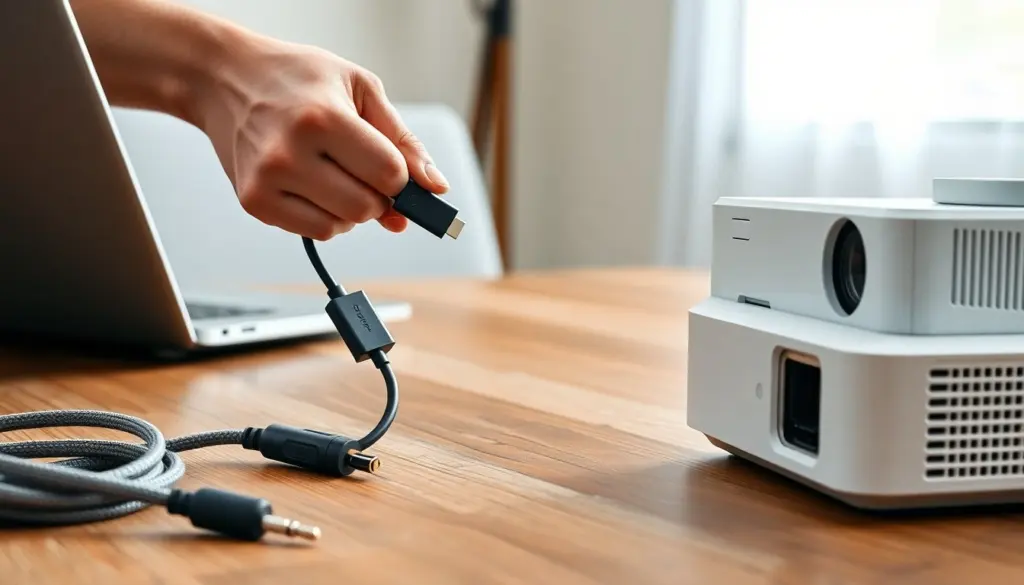
Connecting a projector to a laptop is straightforward: most setups use HDMI, VGA, USB‑C, or a wireless protocol and a few simple settings changes. The right cable or adapter and the correct display mode on the laptop determine whether the image appears immediately or requires troubleshooting. The short plan is to check ports, pick the best wired or wireless option, then adjust display settings and audio if needed.
Key Takeaways
- Connecting a projector to a laptop is easiest using HDMI, but USB-C or VGA can work with the right adapters.
- Always check the ports and compatibility on both the laptop and projector before connecting to ensure smooth setup.
- Use Windows’ Win+P or Mac’s System Settings to select the correct display mode like duplicate or extend for proper projection.
- For wireless projection, confirm both devices support the same protocol like Miracast, AirPlay, or Chromecast and are on the same network.
- Troubleshoot common issues by verifying projector input, adjusting resolution to fit the projector’s capability, and checking audio output settings.
- Keep a backup wired connection with HDMI and adapters to ensure reliability during presentations.
Check Ports, Cables, And Compatibility Before You Start
Quick Facts
- Most modern laptops and projectors use HDMI: older models may have VGA.
- USB‑C with DisplayPort Alternate Mode can carry video, audio, and power.
- Wireless casting (Miracast/AirPlay/Chromecast) depends on both devices and network.
Before touching cables, confirm what each device supports. On the laptop, look for HDMI, VGA, USB‑C (DP Alt Mode), or a mini/Thunderbolt port. On the projector, identify matching inputs and note whether the projector has built‑in speakers or needs an external audio output.
If the laptop only has USB‑C/Thunderbolt and the projector expects HDMI or VGA, the right active adapter is required (USB‑C → HDMI or USB‑C → VGA). Passive dongles sometimes work for simple plug‑throughs but can fail for different signal types, prefer an adapter that explicitly lists video output and the laptop model family.
Also check the laptop’s OS: Windows typically supports multiple display modes readily: macOS uses mirroring and extended desktop options in System Settings. For wireless projection, confirm the projector or an attached dongle supports the relevant protocol (Miracast for many Windows devices, AirPlay for Apple, Chromecast for Chrome/Android ecosystems). Make note of resolution limits, older projectors might be capped at 720p or 1024×768, which matters if the presenter needs crisp text.
If carrying adapters and spares, pack a short HDMI cable, a VGA cable and adapter (for legacy rooms), and a USB‑C to HDMI adapter. Labeling cables at both ends simplifies quick swaps when time is limited. Bold the essentials: check ports and bring adapters.
Make A Wired Connection: HDMI, VGA, USB‑C And Adapter Setup
A wired connection is usually the most reliable for presentations. Follow these numbered steps to connect and set the display for most laptops and projectors.
- Power both devices on. Wait for the projector’s lamp/warm‑up and for the laptop to finish booting. A powered projector often auto‑detects a signal.
- Plug the HDMI cable into the laptop and projector if both have HDMI ports: use HDMI first for video + audio.
- If the laptop only has USB‑C, connect a USB‑C → HDMI adapter, then plug the HDMI cable into the adapter and projector. Choose an active adapter if converting to VGA.
- For older projectors that only accept VGA, connect the VGA cable, then connect a 3.5mm audio cable from the laptop to the projector or external speakers if audio is needed.
- Switch the projector’s input/source to the matching port (HDMI1, VGA, etc.). Many projectors have a remote or front‑panel button labeled Input or Source.
- On Windows, press Win+P and choose Duplicate (mirror), Extend, or Second screen only. On a Mac, open System Settings → Displays and select Mirror or Extend.
- If resolution looks off, change the laptop’s display resolution to a recommended setting supported by the projector. Lowering resolution can improve readability on small or older projector lenses.
Common mistakes: using a passive USB‑C dongle when the laptop needs DP Alt Mode, forgetting to change the projector input, or relying on the projector’s speakers without checking audio routing. If the image is present but black bars or incorrect aspect ratio appear, switch between 16:9 and 4:3 resolutions on the laptop. Bold items: HDMI first and Win+P (Windows) or Displays (Mac).
Use Wireless Projection And Troubleshoot Common Problems
Wireless projection is convenient when cables are impractical, but it adds variables like network compatibility and latency. First, confirm both devices support the same protocol: Miracast (common for Windows), AirPlay (macOS and iOS), or Chromecast (cross‑platform). If the projector lacks built‑in wireless, use a dongle (Chromecast, Apple TV) or connect a laptop as a bridge.
To cast from Windows via Miracast: open Settings → System → Display → Connect to a wireless display (or press Win+K) and select the projector. On Mac, use the Control Center → Screen Mirroring for AirPlay. For Chrome/Chromium browsers, use Cast to mirror a tab or entire desktop to a Chromecast device.
Troubleshooting checklist:
- No device found: ensure both devices are on the same network, or use the projector’s Wi‑Fi Direct mode if available.
- Lag or stutter: reduce resolution or switch to a wired HDMI connection for video‑heavy content.
- No audio: verify the laptop’s output device in Sound settings and select the projector or dongle as the audio output.
- Intermittent drops: reboot the dongle/projector, and if possible, use a dedicated Wi‑Fi network without heavy traffic.
If wireless fails in a meeting, have a backup wired plan: an HDMI cable and adapter. Wireless is best for quick links and mobile demos: wired is best for high‑resolution videos and guaranteed stability. Bold terms: same network and backup wired plan.
Frequently Asked Questions about Connecting a Projector to a Laptop
What are the main methods to connect a projector to a laptop?
You can connect a projector to a laptop using HDMI, VGA, USB-C with DisplayPort Alternate Mode, or wirelessly via Miracast, AirPlay, or Chromecast protocols depending on device compatibility.
How do I set up a wired connection between my laptop and projector?
Power on both devices, connect the laptop to the projector using HDMI, VGA, or a USB-C adapter, switch the projector input to the correct source, then adjust your laptop display settings to Duplicate or Extend the screen.
What should I do if my laptop only has USB-C ports but my projector uses HDMI or VGA?
Use an active USB-C to HDMI or USB-C to VGA adapter compatible with your laptop’s video output to connect the devices effectively.
How can I connect my laptop wirelessly to a projector?
Ensure both devices support the same wireless protocol like Miracast for Windows, AirPlay for Mac, or Chromecast. Then use your laptop’s system settings to connect or cast the display to the projector’s wireless receiver.
Why is my projector showing no signal even though I connected the cables?
Check that your projector input source matches the connected port, confirm cables and adapters are functioning, and verify the laptop display mode is set to Duplicate, Extend, or Second screen only.
What are common troubleshooting steps if wireless projection lags or loses connection?
Try reducing the resolution, switch to a wired HDMI connection for better stability, ensure both devices are on the same network, and restart the projector or wireless dongle if needed.
Leave a Reply