
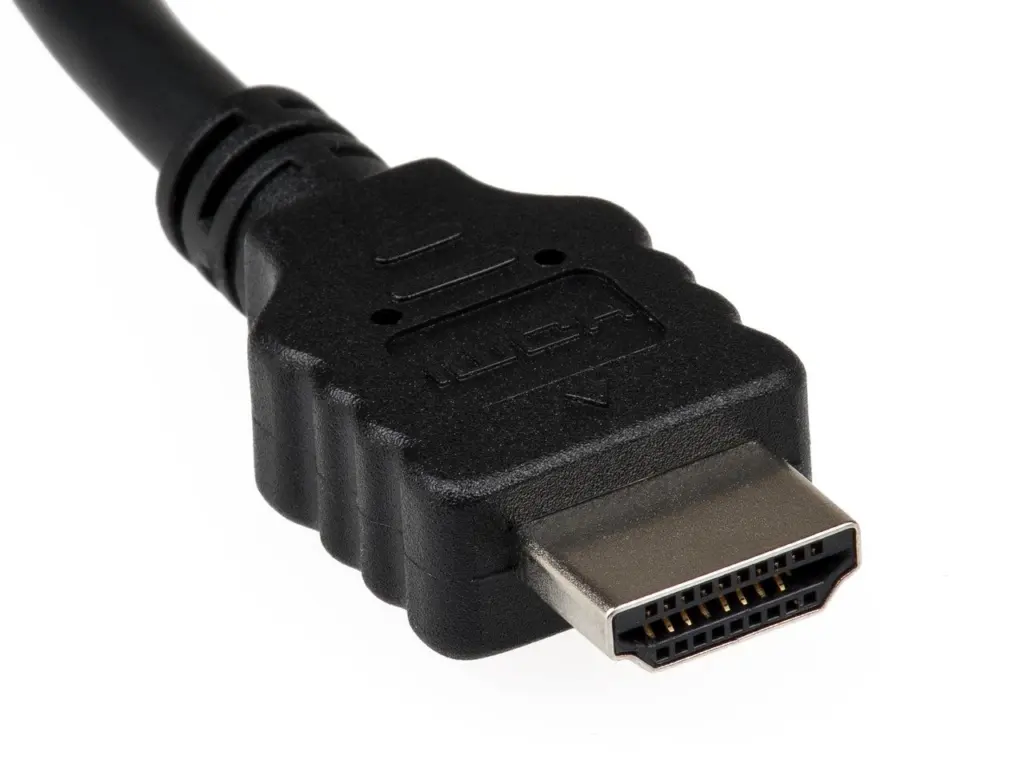
Learning how to connect soundbar to tv with hdmi without arc comes down to one rule: HDMI handles the picture and your source devices, and an optical cable returns the TV’s own audio to the soundbar.
The sections below follow the signal from TV to soundbar. For the wider room layout, including speaker positions and cabling, see our home theater sound system setup guide.
How ARC changes the wiring
HDMI ARC sends TV audio back to the soundbar over the HDMI cable that already links the two. Sonos explains that ARC eliminates the third cable, because a non-ARC setup needs three cables in total: two HDMI cables plus one optical or audio cable running from the TV back to the audio system.
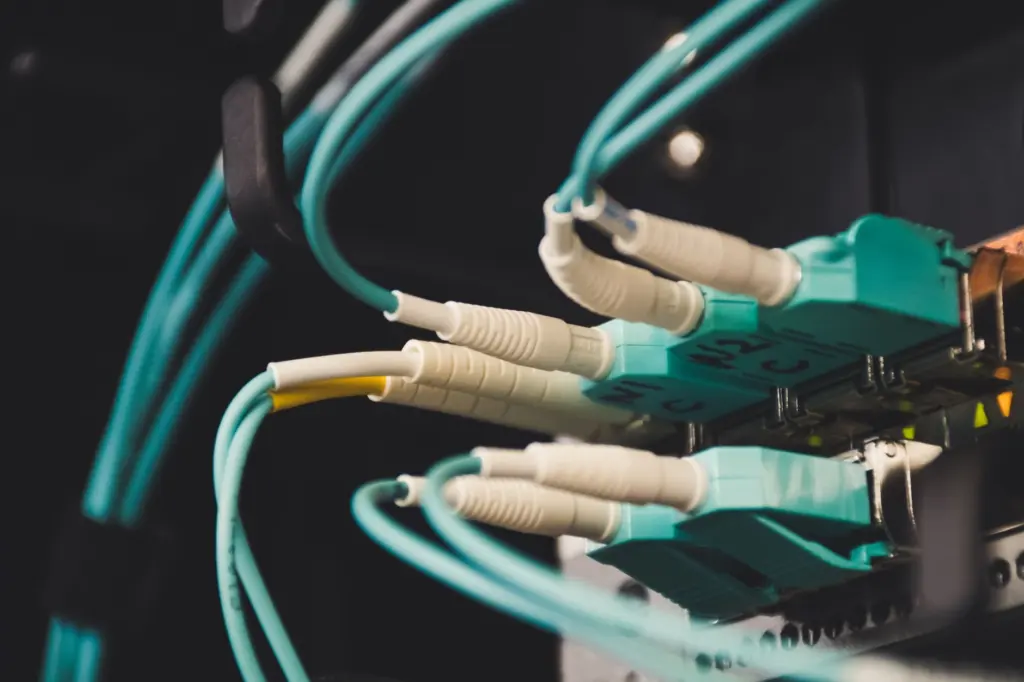
A TV without ARC can still feed a soundbar, but not through a single HDMI cable. Source devices can go through HDMI, and the return audio from the TV itself needs its own path. The same source adds that ARC is not necessary if you only use the TV’s built-in speakers, so a TV without it is a problem only once you add a soundbar.
eARC is the newer step up. It arrived with a newer version of HDMI and offers higher audio bandwidth than ARC. VCOM’s comparison describes ARC as basic audio with lower bandwidth and more limited formats, while eARC supports high-bitrate formats. It is also a feature of the port rather than a cable type, so the connected devices must support it too.
Checking ports and cables before you start
Begin by confirming that your TV really has no ARC input. Samsung’s support guidance says ARC works only through the specific HDMI port labelled ARC, found on the back of the TV or on its One Connect Box. If no HDMI port carries that label, you are in the no-ARC case this guide covers. The same page recommends an HDMI cable of version 1.4 or higher for ARC, which tells you not to buy a new cable for a port that has no ARC support.
Next, look at the TV’s other audio outputs. PCWorld’s soundbar guidance advises checking an older TV for optical or analog stereo RCA outputs (white for left, red for right). Then check the soundbar for a matching input. Optical is the one to hope for, because it carries more than stereo.
Connection methods compared
The table shows what each route needs and what it can carry. Treat the ARC and eARC rows as the benchmark, since a no-ARC TV cannot use them, and choose between optical and analog for the actual connection.
| Method | What it needs | Audio it can carry | Planning use |
|---|---|---|---|
| HDMI ARC | ARC-capable ports; HDMI 1.4 cables and all later versions | Most Dolby Atmos | The simplest option when the TV has it; not available in the no-ARC case |
| HDMI eARC | Introduced with HDMI 2.1; every device in the chain must support it | Lossless Dolby Atmos via Dolby TrueHD | Worth chasing only if you want lossless Atmos and plan to replace the TV |
| Optical cable | Optical output on the TV and optical input on the soundbar; about $15 or so for a cable | Compressed (not lossless) 5.1- and 7.1-channel Dolby Digital and DTS | The practical default for a TV without ARC |
| Analog stereo RCA | Red and white RCA outputs on the TV; an RCA-to-3.5mm cable costs less than $10 | Stereo | A last resort for older sets that lack an optical output |
Figures are drawn from Sonos on ARC and eARC and PCWorld on optical and analog connections.
What the formats mean in practice
Over ARC, Samsung lists PCM in 2 channels, Dolby Digital up to 5.1 channels and DTS Digital Surround up to 5.1 channels, and notes that DTS is only available on its models released before 2018. Optical covers the same compressed Dolby Digital and DTS territory, so the gap between ARC and optical shows up only with lossless formats.
If lossless Dolby Atmos matters to you, eARC is the route. Sonos says every device in the chain must be eARC-compatible, because bandwidth is limited by the weakest link. That makes eARC a TV-purchase decision, not something a cable swap will fix. To understand what Atmos adds before spending money on it, read How Spatial Audio Works: The Beginner’s Guide To 3D Sound In 2026 – Soniqcast.

Step-by-step setup with an optical return
These stages assume your TV has an optical output and your soundbar has an optical input. The order matters: wire first, then set the output, then test with real content.
- Turn everything off. Unplug or power down the TV, soundbar and source devices before moving any cables.
- Connect the HDMI path. Keep your source devices on HDMI inputs as usual. Sonos counts two HDMI cables in a non-ARC setup, so plan for a second HDMI run between the soundbar and the rest of the chain if your soundbar has HDMI.
- Add the optical cable. Run it from the TV’s optical output to the soundbar’s optical input. The plug fits one way, so do not force it.
- Power on and select inputs. Switch the soundbar to its optical input, then set the TV’s audio output as described in the next section.
- Test with familiar content. Play a short clip from the TV’s own apps and another from a connected source device, and confirm that sound comes from the soundbar in both cases.

Once sound is working, a separate subwoofer is the next thing to place; Where Should Your Subwoofer Be Placed? Smart Placement Tips For Cleaner, Deeper Bass In 2026 – Soniqcast covers that.
Setting the TV audio output
A correct cable does nothing if the TV keeps sending sound to its own speakers. Open the TV’s sound or audio-output menu and select the external option that matches your connection, such as an external speaker, receiver or digital output.
On Samsung’s 2017 T/Q, R/Q, N/Q and M/Q series, Samsung’s instructions are Home > Settings > Sound > Sound Output, then select Receiver (HDMI). Other brands and years use different menu names, so look for the equivalent sound-output setting.
Control settings can matter too. Samsung says Anynet+ (HDMI-CEC) is activated at the factory for its soundbars and home cinema systems, and that Anynet+ must be enabled on the TV to use eARC. On the 2017 series the path is Home > Settings > General > External device management > Anynet+ (HDMI CEC). If the soundbar does not respond to the TV remote, check that setting.
Choosing between optical, HDMI and an extractor
For a TV without ARC, optical is the better choice in practice. It costs about $15 or so according to PCWorld, and it carries compressed 5.1- and 7.1-channel Dolby Digital and DTS. That is enough for ordinary TV viewing with a surround-capable soundbar. Its limit is that it is not lossless, so it cannot deliver the lossless Dolby Atmos that needs eARC.
HDMI is better only when the whole chain supports ARC or eARC. If you want that quality, shop for a TV with the right port rather than a new cable. If your TV has no optical output either, analog RCA keeps the soundbar working at stereo quality for under $10 in cable, and it is better than leaving the soundbar silent.
An HDMI audio extractor is the fallback when the TV offers neither ARC nor a usable optical or RCA output. It passes the picture on to the TV and provides audio on a separate output for the soundbar. Choose one whose audio output matches an input on your soundbar, and check which audio formats it passes before you buy.
Frequently asked questions
Can I connect a soundbar by HDMI without ARC?
Yes, but not as a one-cable setup. HDMI still carries your source devices, and the TV’s own audio needs an optical or analog return to the soundbar.
Is optical better than HDMI?
It depends on the ports you have. Optical suits a TV without ARC and handles compressed Dolby Digital and DTS. HDMI eARC is better for lossless Dolby Atmos, but only if every device supports it.
How do I set TV audio output?
Open the TV’s sound menu and choose the external option that matches your cable. On 2017 Samsung models that means Sound Output, then Receiver (HDMI). Check that Anynet+ (HDMI-CEC) is enabled if the remote does not control the soundbar.
Does eARC need a special cable?
eARC is a feature of the port, not a cable type. The cable still matters, but the TV and soundbar must both support eARC for it to work.



Leave a Reply